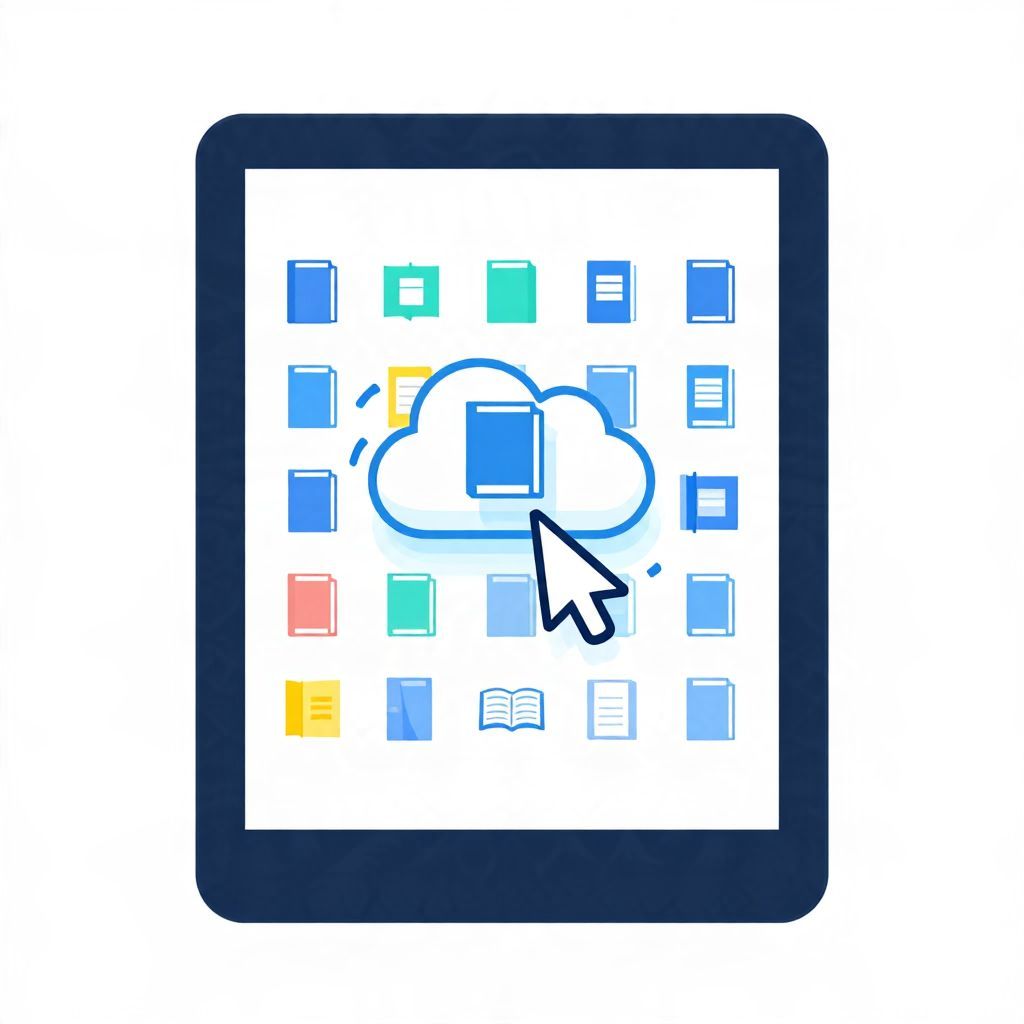
If your Kindle library feels cluttered, you are not alone. Many readers borrow, sample, or buy books and later want to clear the list so only the titles they actually use remain visible.
Removing books from Kindle is usually simple, but the exact steps depend on whether you want to delete a title from a device, remove it from your Amazon library view, or return a borrowed book. Here is a practical guide to doing it cleanly and without losing track of the books you may want later.
How do you remove books from your Kindle library?
You can remove a book from your Kindle library by deleting it from a device, archiving it from your content library, or returning it if it was borrowed. In most cases, the book stays linked to your Amazon account unless you permanently delete it from cloud storage or the title is a loan that must be returned.
Understand the difference between deleting, removing, and returning
Before you tap anything, it helps to know what action you actually want. Kindle and Amazon use similar terms in ways that can be confusing, and each option affects the book differently.
Removing from a device
This clears the downloaded file from your Kindle e-reader, app, or tablet, but the book usually remains in your Amazon library. You can download it again later if you still own it.
Deleting from your Amazon content library
This is a stronger step. It removes the title from your account’s content list, which means it will no longer appear in your library for redownload. For purchased books, this is less common and should be done carefully.
Returning a borrowed book
If you borrowed the title through Kindle Unlimited or another lending program, returning it ends your access and frees the loan. This is the right choice when you are finished reading and want to keep your library tidy.
How to remove a book from a Kindle device
If your goal is simply to clear space or reduce clutter on the device itself, this is the easiest method. It does not usually erase your purchase.
- Open your Kindle home screen or library.
- Find the book you want to remove.
- Press and hold the cover or title.
- Choose Remove from Device or a similar option.
- Confirm if prompted.
On some Kindle apps, you may need to tap the three-dot menu beside the title first. The wording can vary slightly by device, but the idea is the same: you are deleting the local download, not necessarily the account record.
How to remove books from your Amazon Kindle library online
If you want a title gone from your account view, the Amazon website is usually the clearest place to manage it. This is especially useful when your library contains many old samples, expired loans, or books you no longer want to see.
Step-by-step on Amazon
- Sign in to your Amazon account.
- Go to Content and Devices or your digital content library.
- Open the Books section.
- Locate the title you want to remove.
- Select the action menu next to the book.
- Choose the delete or remove option, then confirm.
Be careful here. If the book is a purchase you may want to keep, removing it from your account can make it harder or impossible to retrieve later without buying it again. When in doubt, remove it from the device first and leave the cloud copy alone.
How to return Kindle Unlimited books
Kindle Unlimited books are borrowed, not owned, so returning them is often the cleanest way to manage your reading list. Once returned, they disappear from your active loans and stop counting toward your borrowing limit.
On the Kindle app or device
- Open the borrowed book’s page in your library.
- Tap the menu or three dots.
- Select Return Book if available.
- Confirm the return.
On Amazon’s website
- Sign in to your Amazon account.
- Open your Kindle Unlimited or content management page.
- Find the borrowed title.
- Choose the return option.
If you want a more detailed walkthrough, see how to return Kindle Unlimited books.
What happens after you remove a Kindle book?
The result depends on the type of book and the method you use. A downloaded file removed from a device is usually still available in the cloud, while a returned loan is no longer accessible unless you borrow it again.
- Purchased books: often remain in your Amazon account unless you delete them from the content library.
- Samples: can usually be removed without consequence.
- Borrowed books: stop being available once returned.
- Notes and highlights: may stay tied to the account, depending on the title and platform.
For readers who annotate heavily, this matters. If you rely on highlights for study or review, make sure you know whether removing the book will affect your access to those notes.
Common problems and how to avoid them
Most Kindle library issues come from mixing up device storage with account storage. A little caution can save you from deleting something you still want.
You deleted the book but still see it
That usually means you removed it from one device only. Check your Amazon content library if you want it gone from the account view as well.
You cannot find the delete option
Some books, especially loans, may show a return option instead of delete. Purchased titles may also have different controls depending on region, device, or app version.
You want to keep the book but not see it now
In that case, remove it from the device rather than deleting it from your account. This gives you a cleaner library without losing access.
You accidentally removed the wrong title
If it was only removed from the device, you can usually re-download it from your library. If it was deleted from your account, recovery may be more limited, so check your Amazon settings or purchase history promptly.
Best practices for keeping your Kindle library organized
A tidy library is easier to browse, and it makes your reading life feel less scattered. A few habits can help you avoid future cleanup.
- Archive finished books instead of leaving them open on your home screen.
- Return loans promptly when you are done reading.
- Remove samples you know you will not continue.
- Use collections to group fiction, nonfiction, school reading, or favorites.
- Review your library periodically so clutter does not build up.
If you read across genres, collections can be especially helpful. They let you keep a large library without making the home screen feel crowded or chaotic.
When you should not delete a Kindle book
Sometimes the safest choice is to leave the title in your account and only hide it from view on the device. That is usually the best option for books you may reread, annotate, or assign later.
Be especially careful with:
- reference books you consult often
- textbooks with notes and highlights
- gifted books you may want to revisit
- purchased titles you might not be able to replace easily
If you are unsure, start with the least permanent option. Removing a download is safer than deleting an account record, and returning a loan is safer than trying to force-delete it.
A simple rule of thumb
If you own the book and want to keep access, remove it from the device. If you borrowed it, return it. If you truly want it gone from your Amazon account, use the content management tools carefully and double-check the title before confirming.
For related help, you may also want to read how to return a Kindle book. If your goal is a cleaner, more manageable reading life, knowing the difference between device removal and account deletion is the key step.